In the photography workflow, there is often a challenging phase when you send the initial gallery to the client and ask them to select the photos they want for their final printed album or retouching package.
Client proofing and selection can become disorganized. It can delay project timelines, cause miscommunications, and create administrative overhead.
If your studio manages client selections via messaging apps like WhatsApp, spreadsheets, or email threads, you are likely spending more time on administration than necessary.
This guide discusses why traditional proofing methods often struggle, the psychology behind client indecision, and how implementing an integrated selection workflow (like the one built into Ayojan) can streamline your post-production pipeline.
The Challenges of Traditional Proofing
To improve a workflow, it helps to look at where the current systems struggle.
You deliver a proofing gallery of 2,500 color-corrected JPEGs via a standard cloud drive link. You ask the client to select their favorite 80 photos for a printed album.
The Screenshot Method
Clients often browse photos on their smartphones. Because writing down 80 specific filenames (e.g., _DSC4092.JPG) is tedious on a mobile device, they often take screenshots of the photos and send them via messaging apps.
When a client takes a screenshot, the critical metadata—specifically the camera's original filename—is lost. You receive 80 lower-resolution screenshots. You then have to open your Lightroom catalog containing 2,500 photos and visually search for those exact images. What should be a quick export process becomes a time-consuming search.
The Spreadsheet Method
Alternatively, you might ask the client to list filenames in a spreadsheet.
While this is better, typing complex filenames manually often leads to human error. A client might type _DSC4029 instead of _DSC4092. When you paste their list into Lightroom, some photos may fail to load because the filenames are invalid. You then have to follow up with the client to clarify, which delays the project.
Addressing Client Indecision
Beyond filename issues, the proofing phase often drags on because of decision fatigue.
When you ask a client to select 80 photos out of 2,500, they face an overwhelming amount of choice. They might start strong, select 20 photos, and then feel overwhelmed and delay the rest of the process.
The Pre-Curation Strategy
To reduce friction, it helps to pre-curate the selection. Instead of asking a client to review 2,500 photos from scratch, you can provide a "Highlights" folder.
You can use an AI engine to extract the top 150 well-composed shots into a smart folder.
Your communication to the client changes: "Your full gallery of 2,500 photos is ready. For your physical album, you need to select 80 photos. To make this easier, I have created a 'Highlights' folder containing the best 150 shots. Please make your selections from this folder."
By narrowing their focus, you reduce decision fatigue, and the client can finish the selection process much faster.
(Want to dive deeper? Check out our guide on eliminating distribution issues).
The Integrated Web-App Selection Flow
To avoid the screenshot issue entirely, you can keep the client's selection process within the gallery software.
Intuitive Selection
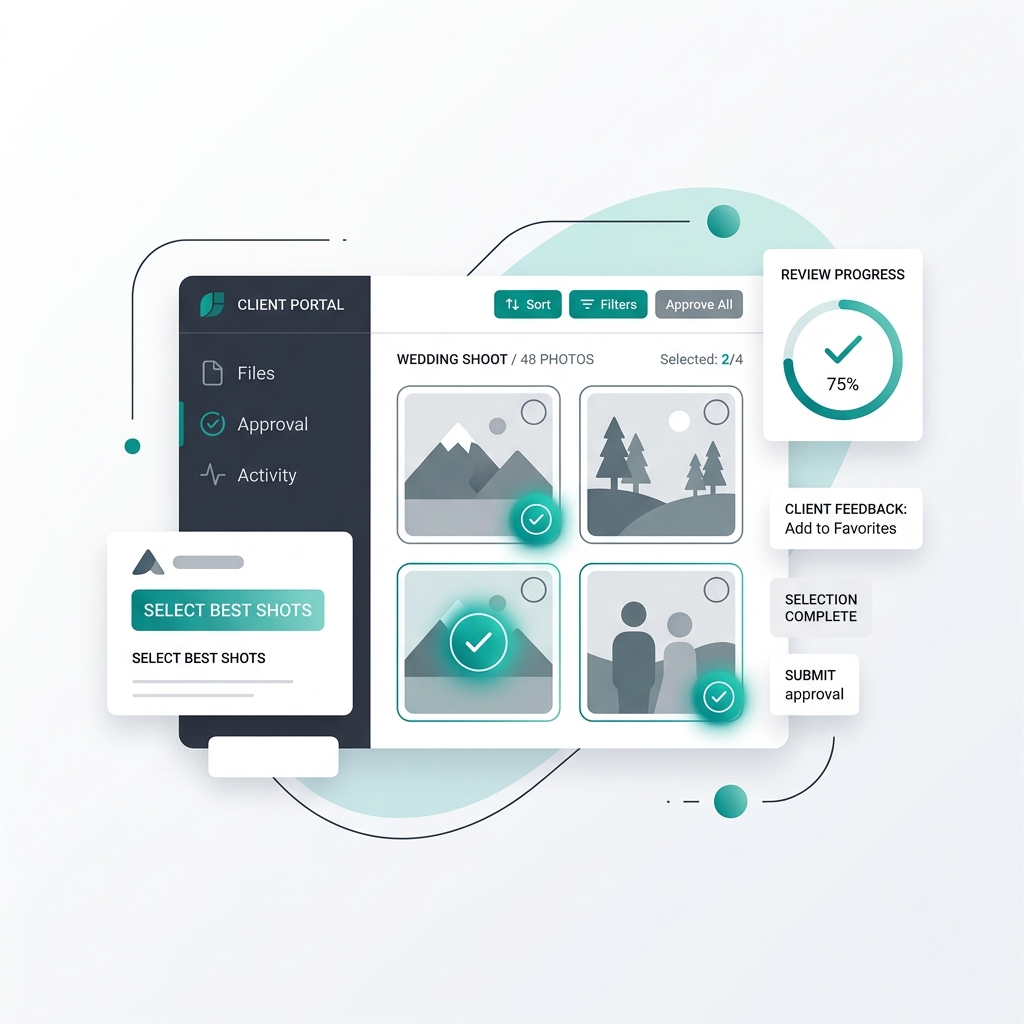
When you use a purpose-built gallery platform like Ayojan, the UI is designed for proofing.
As the client browses their gallery, each photo features a "Heart" or "Select" icon. The instruction is simple: "Click the heart on the photos you want in your album."
Because this action requires only a tap, clients are more likely to comply. The software tracks their selections in the background.
Setting Quotas
If an album package includes exactly 80 photos, allowing the client to select 120 can cause layout issues.
A professional platform allows you to set a selection quota. You configure the gallery to allow a maximum of 80 selections.
As the client taps the icons, a progress bar shows their total. When they reach 80, the system prompts them: "You have reached your limit of 80 photos. Please deselect a photo to add a new one."
This uses software to enforce package boundaries, reducing the need for manual follow-up.
The Lightroom Round-Trip
An integrated proofing system is most valuable when it connects smoothly back to your editing software.
Exporting Data
Once the client finalizes their selections in the Ayojan web app, you do not need to download the high-res photos again. You already have the RAW files on your local drive.
You log into your dashboard and click "Export Selection Data." The platform generates a comma-separated list of the original filenames (e.g., _DSC4092.RAW, _DSC4105.RAW).
The Lightroom Text Search
You open your Lightroom catalog.
- Go to the Library module.
- Open the "Text" search filter.
- Set the parameter to "Filename" and "Contains."
- Paste the comma-separated string into the search bar.
Lightroom instantly filters the gallery down to the exact RAW files the client selected. You can then proceed with high-end retouching or export them for print. A process that used to take significant administrative time is completed quickly.
Managing Multiple Stakeholders
The proofing process can become complex when dealing with multiple stakeholders.
At a corporate event, the Marketing Director may need 50 photos, while the HR Director needs 20. At a wedding, the couple may have their selections, while parents may want their own separate lists.
Managing these overlapping requests via email can be confusing.
Multi-List Capability
Advanced platforms allow you to create specific, isolated selection lists.
You can generate separate links:
- Link 1 for the Marketing Director with a quota of 50.
- Link 2 for the HR Director with a quota of 20.
Each stakeholder logs into their portal and makes their selections independently. On your dashboard, you see distinct, organized lists. You can export the filenames for each list separately.
Administrative friction does not improve the quality of your photography. It often takes up your time and can frustrate your clients. By transitioning your client proofing phase into an integrated, quota-enforced web platform, you gain more control over your post-production timeline and provide a smoother experience for your clients.